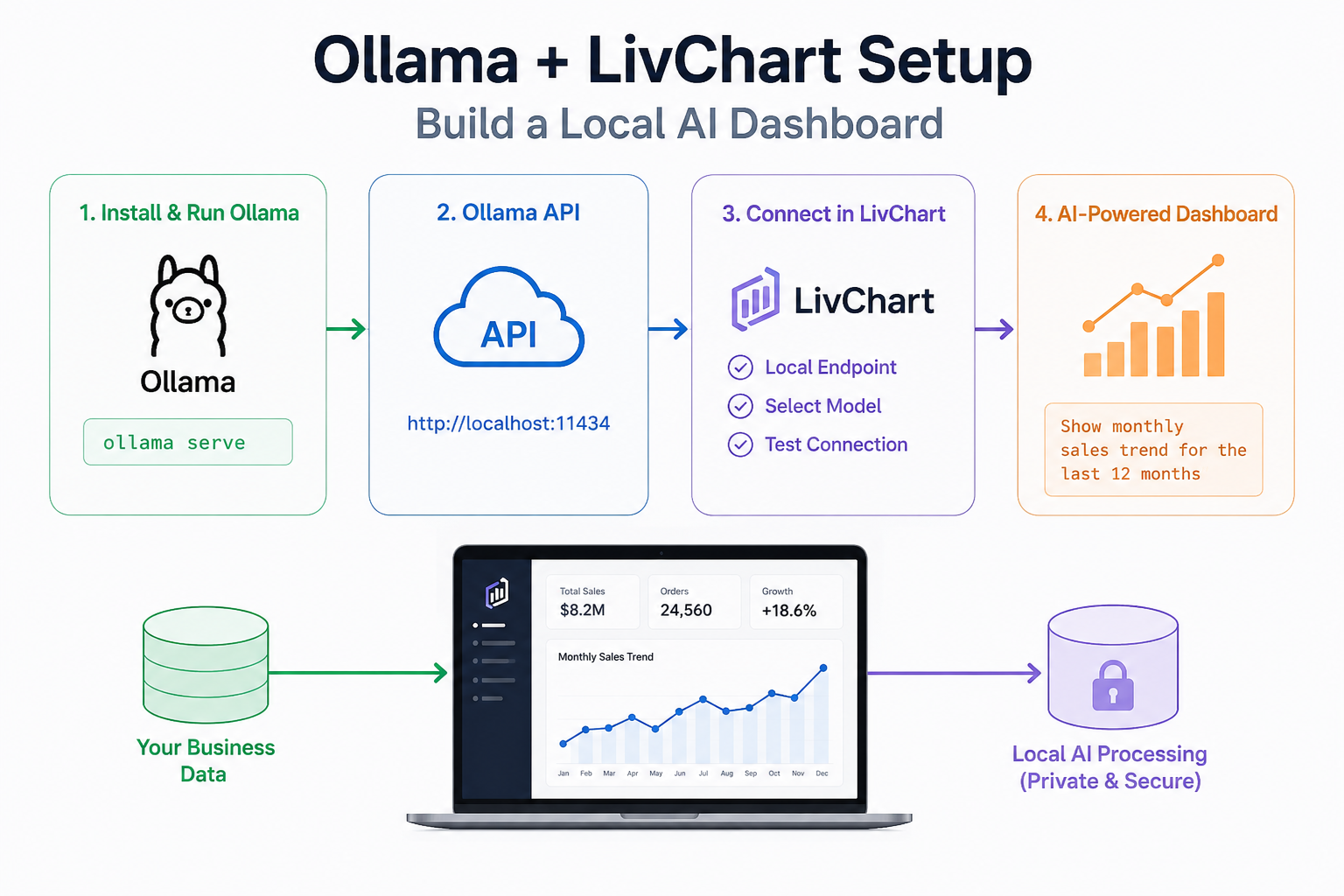
Running AI models locally is no longer experimental.
Today, businesses can build fully functional AI-assisted analytics workflows directly inside their own infrastructure using open-source models and local runtimes.
One of the simplest ways to achieve this is by combining:
- Ollama
- LivChart
This setup allows teams to:
- run AI models locally
- generate dashboards using natural language
- analyze operational data interactively
- reduce dependency on external AI services
- build self-hosted analytics workflows
In this guide, we will walk through the full setup process step by step.
What You Need Before Starting
Before installation, make sure you have:
- Windows, Linux, or macOS
- internet connection for model downloads
- at least 16 GB RAM recommended
- terminal access
- LivChart installed or accessible
For larger models and faster response times, a dedicated GPU is highly recommended.
Step 1 — Install Ollama
Ollama provides one of the easiest ways to run large language models locally.
Installation is straightforward.
macOS Installation
Using Homebrew:
brew install ollama
Linux Installation
Run the official installation script:
curl -fsSL https://ollama.com/install.sh | sh
Windows Installation
Download the installer directly from the official Ollama website and complete the setup.
After installation, verify everything works:
ollama --version
Step 2 — Download a Local AI Model
Once Ollama is installed, you can download and run your first model.
Example:
ollama run qwen2.5
This command:
- downloads the model
- installs it locally
- starts an interactive AI session
The first download may take several minutes depending on model size and internet speed.
Recommended Models for Analytics
Different models behave differently for analytics workflows.
Here are practical starting points.
| Model | Speed | Analytics Quality | Turkish Support | Hardware Need |
|---|---|---|---|---|
| Qwen2.5 | High | Very Good | Excellent | Medium |
| Gemma 3 | Medium | Good | Good | Medium |
| Llama 3 | Medium | Good | Medium | Medium |
| Mistral | Fast | Moderate | Medium | Low |
For multilingual analytics workflows, Qwen models often perform particularly well.
LivChart-Optimized Models for Analytics
While you can use any Ollama model with LivChart, we recommend trying our custom-optimized models. These are configured with specialized system prompts and analytics-focused behavior to deliver better results for dashboard generation, structured output, and Turkish business analytics.
| Model | Command | Size | Best For | VRAM |
|---|---|---|---|---|
| livchart/qwen3.5-9b-q6 | ollama run livchart/qwen3.5-9b-q6 |
7.4 GB | Fast analytics, Turkish support, chart generation | ~8 GB |
| livchart/mistral-nemo-12b-q6 | ollama run livchart/mistral-nemo-12b-q6 |
10 GB | Advanced reasoning, dashboard-focused responses, BI workflows | ~16 GB |
To install a LivChart-optimized model, simply run:
ollama run livchart/qwen3.5-9b-q6
or for more powerful hardware:
ollama run livchart/mistral-nemo-12b-q6
These models are not fine-tuned — they use custom Modelfile configurations with analytics-optimized system prompts. This means you get better structured output and chart-focused responses without sacrificing the base model's capabilities.
Learn more about our optimized models on the LivChart Ollama page.
Step 3 — Start the Ollama API Service
LivChart communicates with Ollama through its local API.
Start the service:
ollama serve
By default, Ollama runs on:
http://localhost:11434
You can verify the service using:
curl http://localhost:11434/api/tags
If the setup works correctly, Ollama returns the list of installed models.
Step 4 — Open LivChart
Open LivChart and navigate to the AI configuration section.
You will typically configure:
- AI provider
- local endpoint
- model selection
- inference settings
Use the Ollama endpoint:
http://localhost:11434
Then select your installed model.
Example:
- qwen2.5
- llama3
- gemma3
Save the configuration and test the connection.
Step 5 — Connect Your Data
Once the AI connection works, connect your business data.
LivChart supports sources such as:
- Excel files
- CSV datasets
- SQL Server
- PostgreSQL
- MySQL
- ODBC sources
The platform automatically detects:
- tables
- columns
- metrics
- dimensions
- date fields
This allows teams to begin analysis quickly without heavy modeling work.
Step 6 — Generate Your First AI Dashboard
Now you can start using natural language analytics.
Example prompts:
Sales Analysis
Show monthly sales trends for the last 12 months
Inventory Monitoring
Which products are approaching low stock levels?
Production Analytics
Visualize production downtime by machine
Financial Reporting
Compare quarterly revenue and operational expenses
The AI generates charts and analysis dynamically.
Because the model runs locally through Ollama, the workflow remains self-hosted.
Why Businesses Are Interested in Local AI Dashboards
The interest in local AI is growing rapidly for several reasons.
Faster Experimentation
Teams can test workflows without relying on external APIs.
Infrastructure Flexibility
Organizations decide where models run and how systems scale.
Reduced Cloud Dependency
Operational analytics workflows become less dependent on external AI platforms.
Self-Hosted Analytics
Companies can build internal AI environments around existing operational systems.
Common Setup Problems
Local AI deployment is becoming easier, but several common issues still appear.
Ollama API Not Responding
Make sure the service is running:
ollama serve
Also verify that port 11434 is not blocked.
Model Not Found
Check installed models:
ollama list
Download missing models again if necessary.
Slow Performance
Large models may require:
- GPU acceleration
- additional RAM
- smaller quantized models
Trying lighter models can improve dashboard response speed significantly.
Firewall Issues
Some operating systems may block local API access.
Verify:
- localhost access
- firewall permissions
- security software settings
Recommended Hardware
Hardware significantly affects local AI performance.
Entry-Level Setup
Suitable for smaller analytics workloads:
- modern CPU
- 16 GB RAM
Recommended Business Setup
Better for operational analytics:
- NVIDIA GPU
- 32 GB RAM
- SSD storage
Larger Deployments
Enterprise environments may use:
- multi-GPU servers
- centralized inference systems
- dedicated AI infrastructure
Example End-to-End Workflow
A typical local AI analytics workflow may look like this:
- Business data enters LivChart
- Ollama processes prompts locally
- AI generates charts and summaries
- Teams continue analysis conversationally
- Dashboards remain inside internal infrastructure
This combines conversational analytics with self-hosted AI deployment.
Why This Setup Matters
The most important change is flexibility.
Businesses no longer need to choose between:
- modern AI workflows
- infrastructure control
Local AI systems allow organizations to build analytics environments around their own operational requirements.
As open-source AI ecosystems continue improving, these workflows are becoming increasingly practical for real business usage.
Final Thoughts
Combining Ollama with LivChart provides a practical way to build local AI-powered analytics systems.
Instead of relying entirely on cloud AI platforms, organizations can deploy AI models locally and integrate them directly into dashboards, reporting workflows, and operational analytics environments.
As AI becomes part of everyday business infrastructure, flexible deployment models will become increasingly important.
Local AI dashboards are no longer experimental.
They are quickly becoming part of modern analytics workflows.